> For the complete documentation index, see [llms.txt](https://help.dataimporter.io/llms.txt). Markdown versions of documentation pages are available by appending `.md` to page URLs; this page is available as [Markdown](https://help.dataimporter.io/integrations/storage/onedrive.md).
# OneDrive
### Configuration
{% hint style="info" %}
You may need to whitelist the Dataimporter [IP Addresses](/security/ip-addresses.md)
{% endhint %}
Connect to OneDrive via oAuth:
### Import
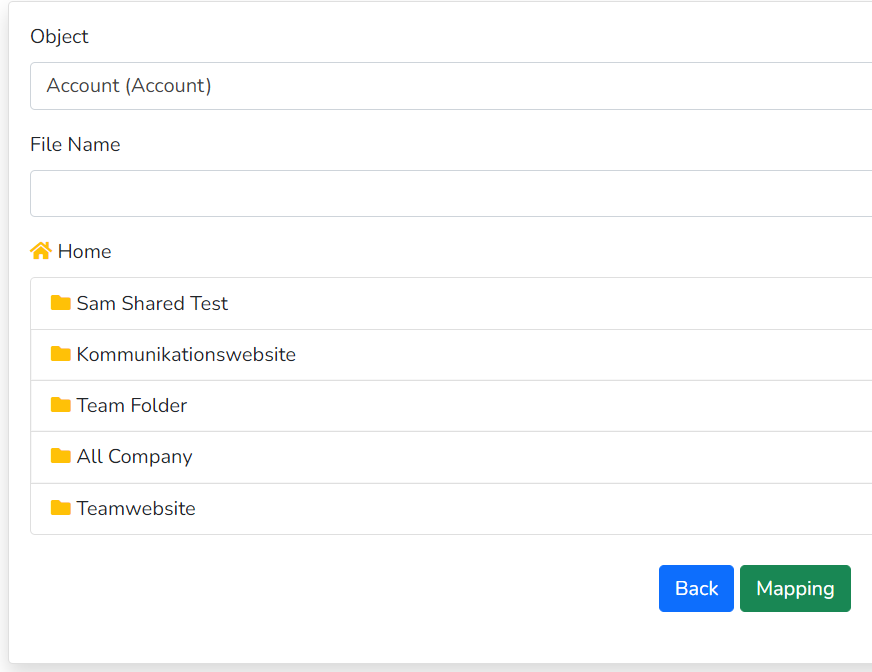
On the Upload screen, you will have an interactive interface where you can navigate through your Drives, Folders and Files.
{% hint style="info" %}
You can use [Wildcard Filenames](/jobs/wildcard-names.md) to select dynamic files
{% endhint %}
### Export
On the Upload screen you can enter the Path to the file that will be exported, as well as the Salesforce Object that you want to export from.